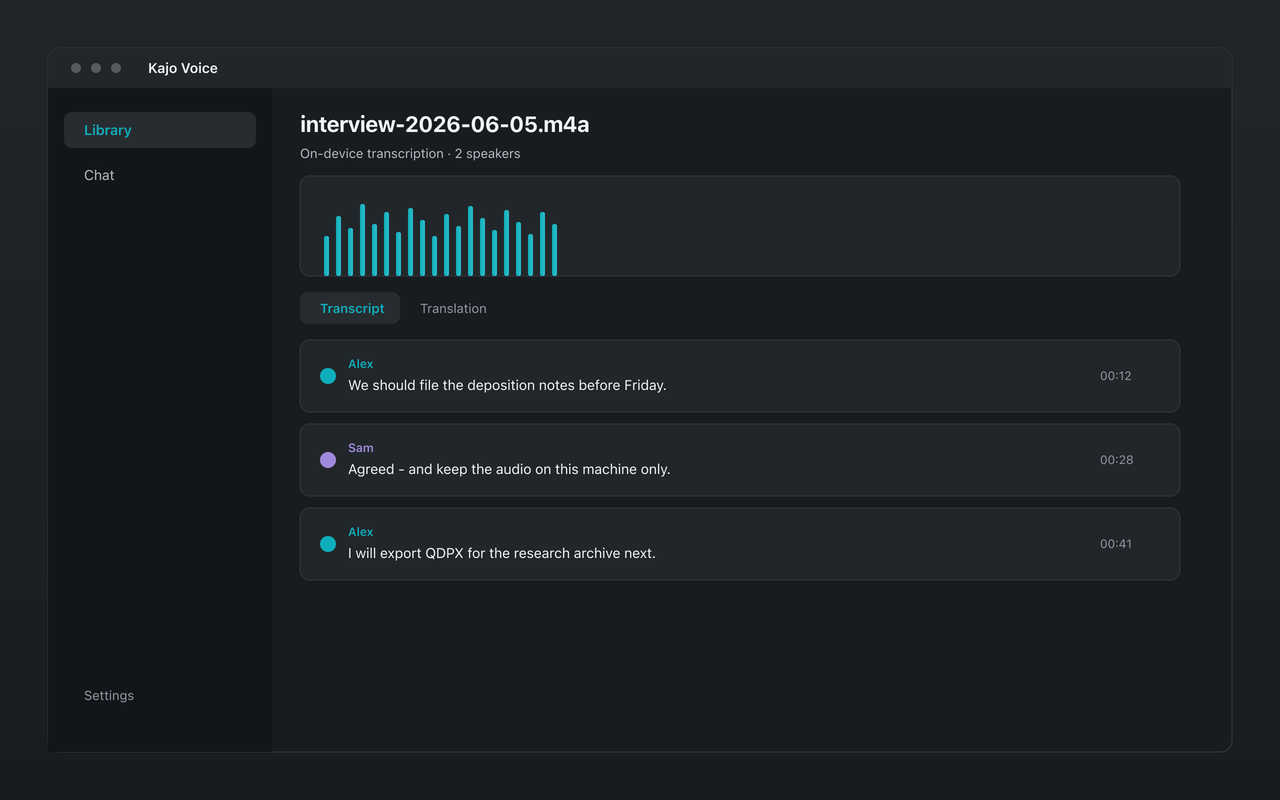
Transcribing audio — converting spoken words to written text — has gone from a slow, expensive manual process to something anyone with a modern laptop can do without sending the audio anywhere. This guide walks through the whole path for an archive of recordings you already have: import, transcription with speaker labels, review, summaries and translation, export, and the library you can ask with citations afterwards.
Three ways to get a transcript
1. Human transcription services. You upload audio to a service and human transcriptionists produce the text. Accurate for most audio, slow (turnaround is measured in hours or days), and priced per minute — Rev’s human service is $1.99 per audio minute.
2. Cloud AI transcription. You upload audio to a service (Otter.ai, AssemblyAI, Notta) and their servers run an AI model. Fast and cheaper, but the audio leaves your device and sits under the vendor’s retention policy.
3. Local AI transcription. You run the model on your own machine — Kajo Voice, or an open-weight model from a terminal (see the engine guide). Private, no per-minute cost, and the same class of model the cloud services run. It needs a reasonably modern computer: 16 GB of RAM.
Everyone whose audio cannot be uploaded ends up at option three. The rest of this guide is that path in Kajo.
Step 1: Prepare your recordings
Better input audio produces better transcription.
File format. Kajo takes audio in MP3, WAV, M4A, M4B, AAC, FLAC, OGG/Opus, WMA, AIFF, AMR, and CAF, and video in MP4, M4V, MOV, MKV, WebM, AVI, WMV, 3GP, and MPEG. Video files are handled by extracting the first audio track — you don’t need to separate it first. If your recording is in some other format, convert it with a free tool like VLC or Audacity.
Audio quality. Poor recording quality is the most common source of transcription errors. Where you can: record in a quiet space, use a headset or lapel microphone rather than a room mic, and avoid phone-speaker recordings — the compression is too heavy.
Sample rate. 16 kHz or higher is ideal. Most modern recorders capture at 44.1 or 48 kHz — these work fine and are downsampled automatically.
Step 2: Set up Kajo once
- Download the app from the download page (Mac, Windows, or Linux).
- On first launch, Setup downloads the models — about 7 GB, once.
- After that, transcription, translation, summaries, and chat all run with the network off.
The free tier covers the core loop on 5 files or 150 minutes of audio — total, for life. One payment ($49 launch / $99 standard) unlocks unlimited imports and Lifetime convenience (watch folders, batch export).
Step 3: Import
Create a folder in the Library for the project — one per study, story, client, or engagement — then drag the recordings in, or use the Import button (the picker takes folders on macOS; Windows and Linux have a separate Import folder button). Recordings from a handheld recorder, a phone, or a Zoom local recording import the same way. On Lifetime, a watch folder can pick up new files from a directory on disk automatically.
Each file is imported and transcribed one at a time, with progress shown as it goes. The recording date is read from the file and is editable — it is what dated questions in chat later use.
Step 4: What happens during transcription
One on-device engine transcribes the file — Transcribes 99 languages on your laptop — all on-device. Language is decided once per recording, from its opening; if one language dominates a mixed recording, set it in Settings → Transcription & AI so a short opening in the other language cannot mislabel the whole file. The transcript is saved as soon as it is ready; speaker labelling then runs automatically, and the recording is indexed for chat once the speakers are in.
After the transcript, Kajo labels the speakers automatically for that recording. Rename them once; the names follow into exports, summaries, and cited answers.
Step 5: Verify and correct
Review the result in Kajo’s viewer. The usual suspects:
- Proper nouns: names of people, places, and organizations
- Technical terms: specialized vocabulary
- Homophones: “principal” / “principle”, “there” / “their”
- Crosstalk: moments where voices overlap — these produce the most errors, in the text and in the speaker labels
Click a segment’s timestamp to jump the player there, and switch on “Highlight words as they play” to follow along (the alignment is approximate). Fix a miss with inline segment edit — the correction carries into search, exports, and cited chat without re-transcribing. Transcription runs once per file, so review happens on the transcript you keep.
Step 6: Summaries and translation (optional)
To summarize a recording, pin it in Chat and run the Summarize starter — Chat reminds you to review it before it leaves your machine. Translate the transcript on-device into any of 59 languages from its Translation tab; the original stays alongside as the record.
Step 7: Export
- TXT: plain text for word processors, coding software, or search indexing
- DOCX: a formatted document with timestamps, good for sharing with collaborators
- SRT / VTT: subtitle files with timestamps — for documentary cuts, bilingual review, or any player (bilingual variants pair each line with its translation)
- JSON: per-segment start, end, speaker, and text, for custom analysis
- CSV / Markdown / PDF: spreadsheet, Markdown, and PDF handoffs
- QDPX: REFI-QDA interchange for NVivo, ATLAS.ti, and MAXQDA — transcript text with per-turn sync points and speaker codes, so coding starts from evidence
Per-file export works on Free within the allowance; Lifetime adds batch export.
Step 8: Ask the archive
The transcript is the start, not the end. Every recording is filed into the library; choose Ask this folder and a chat opens scoped to it. Pin more recordings or folders as sources — with nothing pinned, chat has nothing to search, and searching the entire library is an explicit confirm. The starters — Summarize, Themes, Find the quote, Quote sheet, Who contradicted whom, Draft from citations — run against that scope, dated questions (“since March”, “the last six sessions”) use the recording date, and answers cite the recording and timestamp or say the archive does not contain it. Export an answer to Markdown or DOCX when you need it elsewhere.
Getting the best accuracy
- Close-microphone recording is the single biggest improvement for interviews.
- Set the language when a recording is mostly one language.
- Fix recurring terms early — the first few files tell you which proper nouns to watch for.
- Review speaker labels on multi-party files before you quote anyone.
Frequently asked questions
How accurate is AI transcription? For clear, close-miked single-speaker English, current open-weight models leave mostly names and terms to fix; noise, crosstalk, and accents raise the error rate. There is no published Kajo accuracy benchmark yet — run one real file through the free allowance rather than trusting a percentage. See what accuracy to expect and how to check it.
How long does transcription take? On Apple Silicon the model runs with GPU acceleration; on Windows and Linux it runs on the CPU and takes longer — queue a batch and let it work. Our own measurements, and the machine they were taken on, are on What runs on your machine.
Can I transcribe video files? Yes. Kajo extracts the first audio track from MP4, M4V, MOV, MKV, WebM, AVI, WMV, 3GP, and MPEG files and transcribes it.
Does transcription work offline? Yes, after the one-time model download. Transcription, translation, summaries, and chat all run locally — no internet required after setup.
What languages are supported? Transcribes 99 languages on your laptop — all on-device. The full list is on the Transcribe page.