Search for private transcription software and you mostly find two things: cloud services that want your audio uploaded, and polished local apps that only run on a Mac. If your work happens on a Windows PC — a firm laptop, a lab workstation, a newsroom desktop — the options thin out fast.
Kajo Voice runs on Windows 10 and 11 PCs, including ARM laptops on Windows 11 version 24H2 or later. It transcribes audio and video on the PC itself, labels who spoke, files everything into a private library, and answers questions about a folder of recordings with citations — and after the one-time model download, all of it works with the network off.
What “offline transcription” should mean on Windows
A private transcription tool for Windows should:
- Transcribe on the PC — no upload, no “cloud enhancement” step
- Keep working with the network off once it is set up
- Label speakers, so a transcript of an interview is not a wall of text
- Keep transcripts somewhere you can find them again, not a folder of loose files
- Export to the formats your other tools read — Word, PDF, subtitles, and QDPX for qualitative analysis
The last three are where most local tools stop. Kajo is built around them.
What you need
- Windows: Windows 10 (21H2 or later) or Windows 11 on an x64 PC with an AVX2 processor (Intel 4th-generation Core or AMD Ryzen and newer); Windows 11 version 24H2 or later on an ARM PC such as a Snapdragon X laptop, which runs the same x64 app
- Memory: 16 GB minimum. Kajo itself uses about 6 GB with the chat model loaded and about 8 GB with everything running; the rest is headroom, so the machine stays usable while a batch works.
- Disk: Setup downloads ≈7 GB of models once, before first use; everything runs offline afterwards.
- Network: only for setup — the Microsoft Store install and the model download — and once to activate Lifetime
Kajo installs from the Microsoft Store, which also keeps it up to date. On first launch, Setup downloads every model — transcription, speaker labels, search, and chat — before you start.
How fast it is on a Windows PC
On Windows, Kajo transcribes on the CPU, and speaker labelling runs on the CPU too. The chat model — which translates, summarizes, and answers questions — can use a graphics card through its own runtime and falls back to the CPU when it cannot. On ARM PCs, the whole app is the x64 build, running under Windows 11’s built-in emulation. Nobody has timed it on an ARM PC yet, so try one of your own recordings on the free allowance first.
Our published measurements, on What runs on your machine, come from one Mac, and the page names it. For Windows it gives only a projected speaker-labelling figure, from proxy builds run on that Mac: no Windows PC has been timed on its own hardware yet, and we publish no Windows transcription speed. The honest test is the free tier: time one of your own recordings, the length you actually work with, on the PC you will actually use. Transcribing on the CPU is slower than on a Mac’s GPU — queue a batch and let it run while you work.
A private workflow on Windows
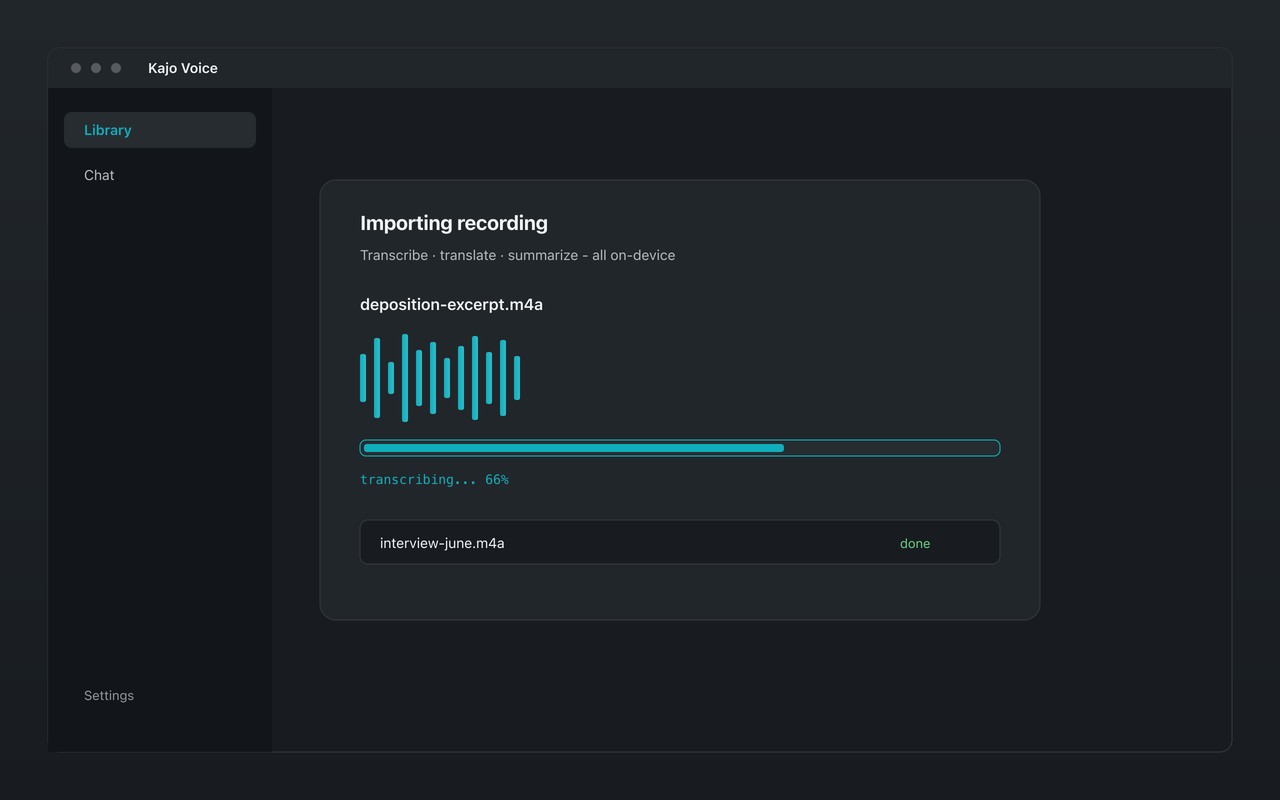
Import. Drag recordings onto the library, or use Import folder to bring in a whole directory — MP3, M4A, WAV, FLAC, AAC, and OGG audio, and MP4, MOV, MKV, and WebM video, among others. On Lifetime, a watch folder picks up new files from the directory your recorder or call software exports to (record only what you are permitted to, with consent).
Review. Each recording is transcribed with speaker labels. Rename the speakers once — “Interviewer”, “Witness A”, “P04” — and fix any misheard name in place; the correction carries into search, exports, and cited chat without re-transcribing.
File. Put each study, matter, client, or story in its own folder. Folders are also what chat answers from, so the way you file is the way you keep one client’s recordings out of another’s answers.
Ask. Choose Ask this folder and put a question to it. Answers cite the recording and the moment, each citation’s quote is matched against the transcript, and when the recordings do not support an answer, Kajo marks it as unsupported.
Export. Export any single transcript as DOCX, PDF, Markdown, TXT, SRT, VTT, CSV, JSON, or QDPX for NVivo, ATLAS.ti, or MAXQDA; Lifetime adds batch export for a whole folder.
Privacy on a work PC
Nothing you import leaves the PC: there is no cloud-processing path to switch on, by you or by anyone else. The library lives in kajo.db on that PC — a plaintext database protected by your account and disk encryption — and it is never uploaded.
The app does use the network for a short, published list of things — the model download, licence checks, update checks (which you can switch off in Settings → General), crash reports and usage analytics only if you agree to send them, and feedback you choose to send — and none of them carries your audio or text. The full list is on What runs on your machine.
Offline after setup. Once the models are on the PC, you can take it off the network for good: transcription, speaker labels, translation, search, and cited chat all keep working, and Lifetime, activated once online, keeps working with no expiry.
How it compares on Windows
- Cloud services in the browser work on any PC, but the audio is uploaded and processed on the vendor’s servers, and most bill monthly or by the minute. See local vs cloud transcription.
- Open-source command-line tools such as whisper.cpp and faster-whisper run well on Windows and are free, but give you text files, not automatic speaker labels, a library, or cited answers. See Kajo vs the command-line tools.
- Mac-only desktop apps such as MacWhisper do not run on Windows at all. Kajo is the same app on Windows, Mac, and Linux, so a mixed office or lab can use one tool.
Pricing
Free covers the core loop — transcribe, label speakers, translate, file, and ask with citations — up to 5 files or 150 minutes of audio, whichever comes first. One payment ($49 launch / $99 standard) unlocks unlimited imports and Lifetime convenience (watch folders, batch export); there is no subscription, and your installed version keeps working forever.
Common Windows questions
Does it need a graphics card? No. Transcription and speaker labelling run on the CPU on Windows. The chat model can use a GPU where its runtime supports one, and falls back to the CPU otherwise.
Does it run on Windows on ARM? Yes, through emulation. ARM PCs run the same x64 app under Windows 11’s built-in x64 emulation, which needs Windows 11 version 24H2 or later. There is no native ARM64 build.
Does it work offline? Yes, after the one-time model download: transcription, speaker labels, translation, search, and chat all run with the network off.
Are my recordings sent to Microsoft or an AI service? No. Kajo does not use a cloud AI service of any kind. Every model it uses — for speech, speakers, search, and chat — runs on your PC.